Tip#14: Updating blank values using Data loader

Tags

, ,

Recently, I had a requirement to update a field with NULL value using APEX Data loader.

There is a setting in Data Loader that allows for updating a field with a NULL value and it’s as follows:

1. Launch Data Loader
2. Select Settings
3. Check box – Insert Null Values.

Then, follow the below procedure:

1. Export the data – include id and Field that should be changed to blank.
2. Delete data contained in column that should be returned as NULL (no values).
3. Save new .csv with new name to avoid overwriting Data Export in Step 1 of this sample process.
4. Run Data Loader Update using new file with Blank values.

Sharing is fun!

Tip#13: Process Builder bulkified!

Tags

, ,

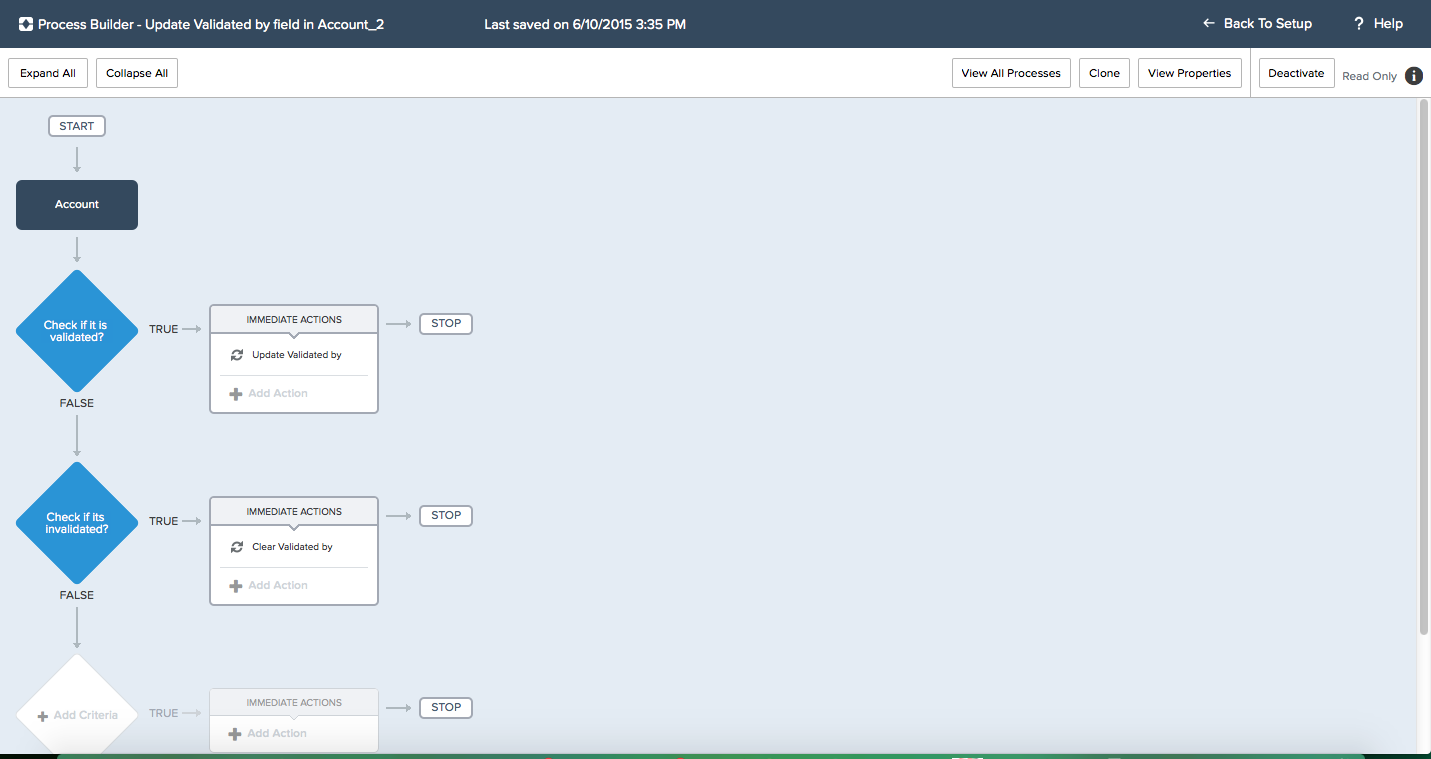
I developed a process recently in Accounts object and when I did a mass update of account records(around 600+ records), I got an error saying Too many SOQL queries: 101. This is due to the reason that process builder is not bulkified. Good news is that from winter 16 release onwards, the chances of getting this error would be reduced as Salesforce made process builder to handle bulkification.

Release notes link: http://releasenotes.docs.salesforce.com/en-us/winter16/release-notes/rn_forcecom_process_bulkification.htm#rn_forcecom_process_pb_bulkification.xml

Tip# 12: Resolving “Schedulable class has jobs pending or in progress” error

Tags

,

This error “Schedulable class has jobs pending or in progress” might occur when saving the class after editing it.

This could be due to the reason that there are scheduled jobs related to the class that we are trying to edit or its dependent classes. To resolve the issue, we can abort the jobs manually from Setup->Jobs->Scheduled Jobs.

There is a detailed explanation about this error in the link https://help.salesforce.com/apex/HTViewSolution?id=000004423&language=en_US

P.S. I had got this error recently in Sandbox for one of the class after I modify it, though its dependent class is scheduled and after deleting the corresponding jobs in Setup->Jobs->Scheduled Jobs, I could save the class successfully.

Tip#10: APEX Data loader for Mac OS

Tags

As of Summer’15 release, APEX Data Loader for Mac OS X is available. It is available in Enterprise, Professional, Performance, Unlimited, and Developer Editions.

APEX Data Loader is an easy-to-use graphical tool that helps you to import, export, update, and delete Salesforce data.

To download the Mac version, click on Setup->Data Management->Data Loader in your Salesforce Org. Salesforce recommends the uninstall of LexiLoader or any similar tool which you might have been using, before installing the Data loader.

P.S: There is an another useful Data loader tool available which is Dataloader.io and I love it due to ease of use, task history and other features(including scheduled tasks).

Tip#9: CASESAFEID and Converting 15 Character Salesforce Id to 18 Character Id

Tags

,

Salesforce has 2 versions of Id, 15 and 18 characters. Originally, all Salesforce IDs were 15-characters and case-sensitive whereas 18 character Id is case insensitive.

Suppose, we are exporting report data from salesforce onto excel and using the Excel VLOOKUP function to match up records. Since VLOOKUP doesn’t handle case-sensitive data well, we would have to convert 15 character Salesforce Id to 18 character Id.

As part of Spring ’12 release, Salesforce introduced a new formula function CASESAFEID, which accepts a 15-character ID as a parameter and returns the 18-character version. For instance, CASESAFEID(Id).

Also, I use the link https://www.adminbooster.com/tool/15to18 to convert 15 character Id to 18 character Id instantly.

There is a knowledge article on converting 15 to 18 character Id and the link for the same is https://help.salesforce.com/apex/HTViewSolution?id=000005288&language=en_US

Tip#8 : Troubleshooting “cannot create a new Master-Detail relationship” error

Tags

To demonstrate the case, let’s say that we have a custom object called “RateCard” and it has got a lookup field “Account”. We want to convert the lookup relationship to Master – detail, as we can have more than 1 Rate Card per account(1:M relationship). I tried changing the lookup to Master Detail for the account field and got the error “cannot create a new Master-Detail relationship”.

This is due to the reason that the lookup field(Account) in all RateCard records did not have a value. Once I populated the value for Account field in the records that didn’t have it, I could convert the Account relationship to Master – Detail. Please note that Master – Detail relationship requires Detail Record (Child) ALWAYS have a Master (Parent) record since the detail record inherits security and ownership from the parent record.

Let me know your comments.

Tip#7: Adding Hyperlink in the flow

Tags

,

UPDATE:

Thanks Evan for your comments!!

In more recent versions of Flow, you can simply have your URL point to /{!RecordId} and Salesforce will correctly navigate to the record. Obviously, RecordId variable in the flow should hold the Id of the record. I did a quick check on this in my Dev edition org and it worked.

Here is how you can do it in the new flow builder:

Create a screen element with the Display text as Link(or whatever you name the text) and give the hyperlink as /{!RecId} where RecId is the flow variable which holds the Id of the created record or the Id of the record to be navigated to, after the user clicks on the Display text(Link). Screenshot is given below for your reference:

Link screenshot2

How to achieve this in Old Flow Builder:

For example, there is a flow which gets inputs from user and creates a RateCard(Custom object) record, if it doesn’t exist in the system. Once created, it should show the URL(clickable) of the record created.

This is possible by editing the screen(which is the last step in the flow) and the Display text field there is a little button which shows T(marked in yellow colour in the screenshot below) with what looks like a selection box around it. Type the text you want (View the RateCard record here). Highlight it, and in one of the fields that showed up you can put in the url,something like https://cs5.salesforce.com/{!RateCardIdcreated}

Adding Hyperlink in the Flow

Clickable link
P.S: RateCardIdcreated holds the Id of the RateCard record created.

Please let me know your comments.

Tip#6: Standard Pricebook record visibility in Test Class

Tags

,

Suppose, we want to access Standard Pricebook Id in the test class and this can be achieved in 2 ways:

a. Annotate the test class with @isTest(SeeAllData=true).
b. Use getStandardPricebookId() method of Test Class as given below.

Id pricebookId = Test.getStandardPricebookId();// This is available irrespective of the state of SeeAllData.

Imagine we have a test class which creates a record in Custom object and once the record is saved, flow is called which creates Pricebook/Product/Pricebook entry records. In this case, we would have to go with annotating the test class with SeeAllData=true as we do not need to pass Standard Pricebook Id instead it is queried inside the flow, but it will be visible only with SeeAllData=true.

Please let me know for any comments/clarification.