• About
  • Contact me!

Salesforce Everywhere

~ Blog on Salesforce Dev and admin stuff

Salesforce Everywhere

Author Archives: Mani

Tip#6: Standard Pricebook record visibility in Test Class

08 Tuesday Sep 2015

Posted by Mani in Apex, APEX Test class

≈ Leave a comment

Tags

APEX Test Class, Standard Pricebook

Suppose, we want to access Standard Pricebook Id in the test class and this can be achieved in 2 ways:

a. Annotate the test class with @isTest(SeeAllData=true).
b. Use getStandardPricebookId() method of Test Class as given below.

Id pricebookId = Test.getStandardPricebookId();// This is available irrespective of the state of SeeAllData.

Imagine we have a test class which creates a record in Custom object and once the record is saved, flow is called which creates Pricebook/Product/Pricebook entry records. In this case, we would have to go with annotating the test class with SeeAllData=true as we do not need to pass Standard Pricebook Id instead it is queried inside the flow, but it will be visible only with SeeAllData=true.

Please let me know for any comments/clarification.

Tip#5: APEX Best Practices

06 Sunday Sep 2015

Posted by Mani in Apex

≈ Leave a comment

Tags

APEX Best Practices, APEX Code

There are instances where we need to write APEX code when the desired functionality cannot be achieved through point and click. Following are the links which talks about APEX best practices:

https://developer.salesforce.com/blogs/developer-relations/2015/01/apex-best-practices-15-apex-commandments.html

https://developer.salesforce.com/page/Apex_Code_Best_Practices

Enjoy writing good apex code!


Tip#4 : Calling a flow from APEX

05 Saturday Sep 2015

Posted by Mani in Uncategorized

≈ Leave a comment

It is possible to call a flow from APEX class since Summer’14 release with the help of Flow.Interview class. Here is an example below.

Map params = new Map();
params.put(‘RatecardId’, ratecard.Id);//Passing RateCard Id to the flow as a parameter
params.put(‘OptyId’, Optyid);//Passing Opportunity Id to the flow as a parameter
Flow.Interview.Update_RateCard_after_Opty_Creation RFlow = new Flow.Interview.Update_RateCard_after_Opty_Creation(params);//Calling the flow “Update_RateCard_after_Opty_Creation” which is active in Salesforce.
RFlow.start(); //Start method invokes an autolaunched or user provisioning flow

There is an useful article which Andrew has written on the same topic and here is the link http://andyinthecloud.com/2014/10/26/calling-flow-from-apex/

SOQL : Using NOT LIKE

01 Tuesday Sep 2015

Posted by Mani in Apex

≈ Leave a comment

Tags

NOT LIKE IN SOQL, SOQL

There may be instances where we need to use NOT LIKE in SOQL(I got to use it recently in my project) and using it in SOQL is little more counter intuitive unlike LIKE.

For instance, we want to fetch Id from Job where Status=Complete,Type contains ‘Physiotherapy’ and it should not contain ‘Pain Management’, for instance Type=’Physiotherapy Pain Management’ should not be fetched and the correct query is as follows:

select id from Job__c where Job_Status__c=’Complete’ and Type__c LIKE ‘Physiotherapy%’ and (NOT Type__c LIKE ‘%Pain Management%’)

You might get MALFORMED_QUERY … unexpected token: ‘not’ or MALFORMED_QUERY … unexpected token: ‘like’, if you try any similar variants as below which would not work:

select id from Job__c where Job_Status__c=’Complete’ and Type__c LIKE ‘Physiotherapy%’ and NOT Type__c LIKE ‘%Pain Management%’

select id from Job__c where Job_Status__c=’Complete’ and Type__c LIKE ‘Physiotherapy%’ and NOT (Type__c LIKE ‘%Pain Management%’)

select id from Job__c where Job_Status__c=’Complete’ and Type__c LIKE ‘Physiotherapy%’ and Type__c NOT LIKE ‘%Pain Management%’

Happy sharing!

Getting Recordtype Id in APEX

29 Saturday Aug 2015

Posted by Mani in Apex

≈ Leave a comment

Tags

APEX, RecordtypeId

Suppose, we have 2 record types(Lets say Sales and Support) in Opportunity and when we create an Opportunity through APEX code, we need to populate the record type as Sales. We cannot hard code the record type Id in the code when we create the Opportunity as it varies based on Organization(Sandbox/Prod).

Following code would help to get the desired RecordTypeId:

Map sObjectMap = Schema.getGlobalDescribe();//This returns a map of all sObject names (keys) to sObject tokens (values) for the standard and custom objects defined in your organization.
Map recordType sObjectMap.get(‘Opportunity’).getDescribe().getRecordTypeInfosByName();//From the map sObjectMap, getDescribe which returns the describe result for Opportunity (contains all the describe properties for the sObject Opportunity) and getRecordTypeInfosByName method return maps that associate RecordTypeInfo with record IDs and record labels, respectively for Opportunity.
Id rtId = recordType.get(‘Sales’).getRecordTypeId();//getRecordTypeId returns the ID of the record type ‘Sales’.

There is another way to get the RecordType using SOQL(subjective to SOQL limit) which is as follows:

RecordType RecType = [Select Id From RecordType Where SobjectType = ‘Opportunity’ and DeveloperName = ‘Sales’];

There is a wonderful post in Salesforce Stackexchange about the best approach to get the recordtype id and the link for the same is RecordType Id best approach

Happy coding! Please let me know your comments as always.

Tip#3 – Aggregate functions in SOQL

28 Friday Aug 2015

Posted by Mani in Aggregate functions, Apex, SOQL

≈ 1 Comment

Tags

Aggregate functions in SOQL

Aggregate functions in SOQL:

Aggregate functions in SOQL, such as SUM(),MAX(),COUNT() and AVG() are used to summarise the data in a query.

Suppose,we want to sum the Duration of all the Billable Jobs on a custom object Job, the query can be as follows:
AggregateResult[] groupedResultsBillable;
groupedResultsBillable=[select sum(Duration__c) from Job__c where Job_Billable__c=true];

Note that any query that includes an aggregate function returns its results in an array of AggregateResult objects.

Get the sum of the duration using the following code:
Decimal dur;
for (AggregateResult ar : groupedResultsBillable) //loop through the results
{
dur=(Decimal)ar.get(‘expr0’);
}
Note: Any aggregated field in a SELECT list that does not have an alias automatically gets an implied alias with a format expri, where i denotes the order of the aggregated fields with no explicit aliases. The value of i starts at 0 and increments for every aggregated field with no explicit alias.

Tip#2 – DATEVALUE Function

26 Wednesday Aug 2015

Posted by Mani in Uncategorized

≈ Leave a comment

Suppose, the requirement is to populate the Date field(let’s say Overtime date) on a custom object XYZ from the date time field(let’s say Job Start Date) upon record creation. Create a workflow and trigger it when the record is created on XYZ object. Workflow action will be a field update and it will be DATEVALUE(Overtime__c).

DATEVALUE – This function returns a date value from a date/time field or text expression. Additional points to note:
a. If the field referenced in the function is not a valid text or date/time field, the formula field displays #ERROR!
b.Dates and times are always calculated using the user’s time zone.

Please let me know for any comments/clarification.

Salesforce Tips: Tip#1 – Notes and Attachments permissions

25 Tuesday Aug 2015

Posted by Mani in Salesforce Tips

≈ Leave a comment

Tags

Salesforce Tips

Welcome to Salesforce Tips! Everyday at work, we always get opportunity to learn new things in Salesforce and I thought if we can share it in few words(perhaps less than 250 words) as Salesforce Tips, it would be useful for the Salesforce community.

Here is the first tip:

Notes and Attachments permissions are determined based on the parent object.Specifically, user need to have Edit permissions on the parent object and read/write visibility to the parent record. In addition, “Notes and Attachments” related list should be visible on the page layout.

Happy sharing and look forward for more Salesforce Tips!

Adding months to a Date field

19 Wednesday Aug 2015

Posted by Mani in Adding months to a date using Salesforce formula, Salesforce Configuration

≈ Leave a comment

Tags

Adding months

Requirement:

In my current project, based on Commencement Date of Resource, I need to send out email notification to several departments(HR, Payroll etc) and I need to do it if Resource completes 6, 12, 24 and 36 months. Basically, I had to add 6, 12,24 and 36 months to Commencement Date field and based on that date, I need to trigger Workflow notification(Time Trigger).

Analysis:

Salesforce help site https://help.salesforce.com/HTViewHelpDoc?id=formula_examples_dates.htm has a formula and it is as follows, but unfortunately it throws compilation error(Compiled formula is too big to execute (5,503 characters). Maximum size is 5,000 characters) when tried:

IF(
MOD( MONTH( Commencement_Date__c ) + 6, 12 ) = 2,
IF(
DAY( Commencement_Date__c ) > 28,
DATE( YEAR( Commencement_Date__c ) + FLOOR( ( MONTH( Commencement_Date__c ) + 6 ) / 12 ), 3, 1 ),
DATE( YEAR( Commencement_Date__c ) + FLOOR( ( MONTH( Commencement_Date__c ) + 6 ) / 12 ), 2, DAY( Commencement_Date__c ) )
),
IF(
OR(
MOD( MONTH( Commencement_Date__c ) + 6, 12 ) = 4,
MOD( MONTH( Commencement_Date__c ) + 6, 12 ) = 6,
MOD( MONTH( Commencement_Date__c ) + 6, 12 ) = 9,
MOD( MONTH( Commencement_Date__c ) + 6, 12 ) = 11
),
IF(
DAY( Commencement_Date__c ) > 30,
DATE( YEAR( Commencement_Date__c ) + FLOOR( ( MONTH( Commencement_Date__c ) + 6 ) / 12 ),
MOD( MONTH( Commencement_Date__c ) + 6, 12 ) + 1, 1 ),
DATE( YEAR( Commencement_Date__c ) + FLOOR( ( MONTH( Commencement_Date__c ) + 6 ) / 12 ),
MOD( MONTH( Commencement_Date__c ) + 6, 12), DAY( Commencement_Date__c ) )
),
IF(
MOD( MONTH( Commencement_Date__c ) + 6, 12 ) = 0,
DATE( YEAR( Commencement_Date__c ) + FLOOR( ( MONTH( date ) + 6 ) / 12 ) – 1, 12, DAY( Commencement_Date__c ) ),
DATE( YEAR( Commencement_Date__c ) + FLOOR( ( MONTH( Commencement_Date__c ) + 6 ) / 12 ),
MOD( MONTH( Commencement_Date__c ) + 6, 12), DAY( Commencement_Date__c ) )
)
)
)

Solution:

Thanks to Chris (http://www.salesforceweek.ly/author/chris) and the link http://www.salesforceweek.ly/2015/01/how-to-formula-add-months-to-date.html gives a good post about adding months to a Date.

As per the above link, I tried the following formula which adds n months(6,12, 24 and 36 month) works perfectly fine(including leap years) where n means :
[code language=”html”]
DATE ( /*YEAR*/

YEAR(Commencement_Date__c) + FLOOR((MONTH(Commencement_Date__c) + n – 1)/12),

/*MONTH*/

CASE(MOD(MONTH(Commencement_Date__c) + n, 12 ), 0, 12, MOD(MONTH(Commencement_Date__c)+ n, 12 )),

/*DAY*/

MIN(DAY(Commencement_Date__c), CASE(MOD(MONTH(Commencement_Date__c) + n,12), 9, 30, 4, 30, 6, 30, 11, 30, 2,

/* return max days for February dependent on if end date is leap year */

IF(MOD(YEAR(Commencement_Date__c) + FLOOR((MONTH(Commencement_Date__c) + n)/12), 400) = 0 || (MOD(YEAR(Commencement_Date__c) + FLOOR((MONTH(Commencement_Date__c) + n)/12), 4) = 0 && MOD(YEAR(Commencement_Date__c) + FLOOR((MONTH(Commencement_Date__c) + n)/12), 100) <> 0 ), 29,28), 31)) )

[/code]
Please let me know your comments as always.

Update lookup field using Process Flow

15 Saturday Aug 2015

Posted by Mani in Process Builder

≈ 4 Comments

Tags

Lookup fields, update lookup fields

It has been a long time:), let me share few posts on Process Builder and Flows which I have been using them recently.

Requirement:

Need to update a lookup field in an object. We have a Location field as a lookup in a custom object(say Rate Card). This should get populated from Account’s location when a new rate card is created. Account is a lookup field in the Rate Card and it is a required field.

Analysis:

Earlier, the requirement could only be achieved through APEX code as we cannot use Workflow Field update for lookup fields, but with the introduction of Process Builder, it is possible to update lookup field through Process flow. Wow, it’s a boon for developers:)

Solution:

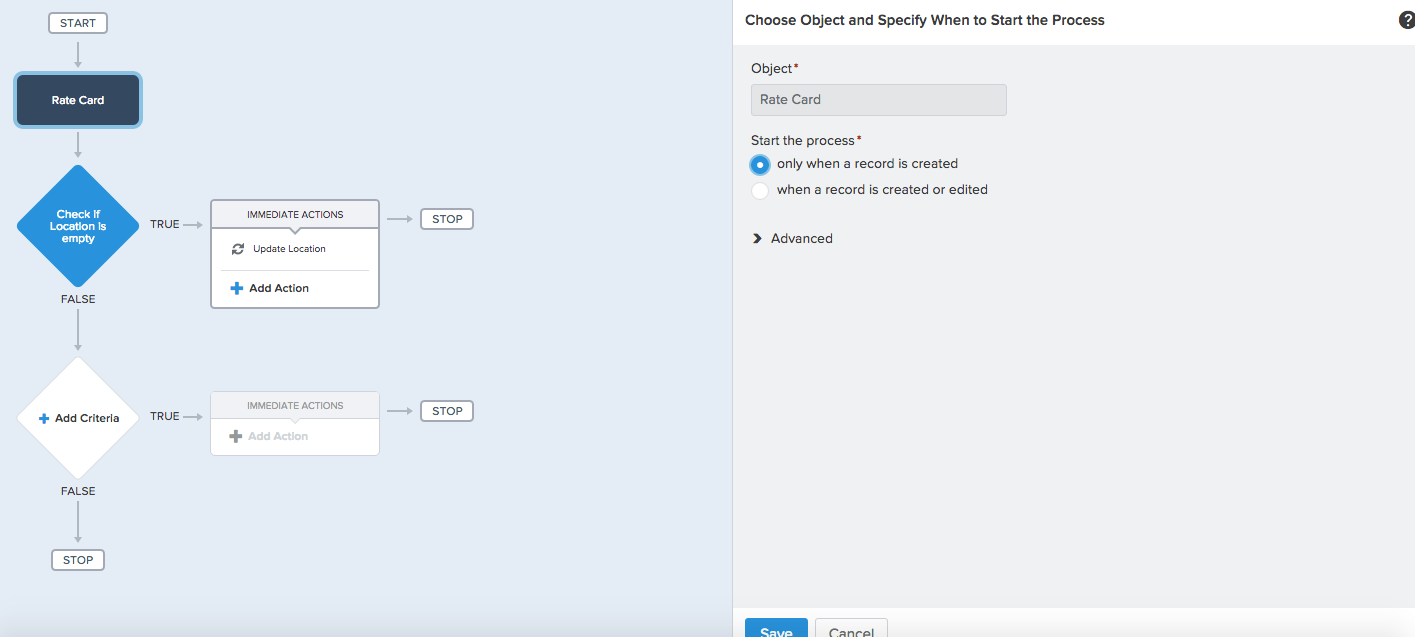
Create a process as per the screenshot below:

Create Process

The process will be executed upon Rate Card record creation.

Check if Location field is empty and if so, update it:

Screen Shot 2015-08-15 at 12.32.18 pm

Create an Immediate action to update the Location field:

Update Location

Note the value, we have taken Rate Card’s account’s location and updated in Location field of Rate Card.

There is a salesforce article on How to auto populate Look up Field using Process Builder

Limitation: You cannot Update Lookup field from formula/text field

Please let me know for any comments/clarification.

P.S: It is possible to update lookup field using Visual flow. Please find the screenshot below which shows account id update(account is a lookup field in Opportunity object) in Record update step in Visual flow.

visual-flow-update

Visual flow update

← Older posts
Newer posts →

Blog Stats

  • 146,438 hits

Archives

Recent Posts: Salesforce Everywhere

Expert Salesforce Solutions from a Turnaround Master :)

Einstein GPT

How to get field values on onLoad in lightning-record-edit-form in LWC?

Using Dynamic Actions

How to check if the logged in user is a Guest user or not in APEX class?

Connect with me

  • View @manibalan_s’s profile on Twitter
  • LinkedIn

Follow this Blog via Email

Enter your email address and click on Follow us (below) to follow this blog and receive notifications of new posts by email.

Powered by WordPress.com.

Loading Comments...